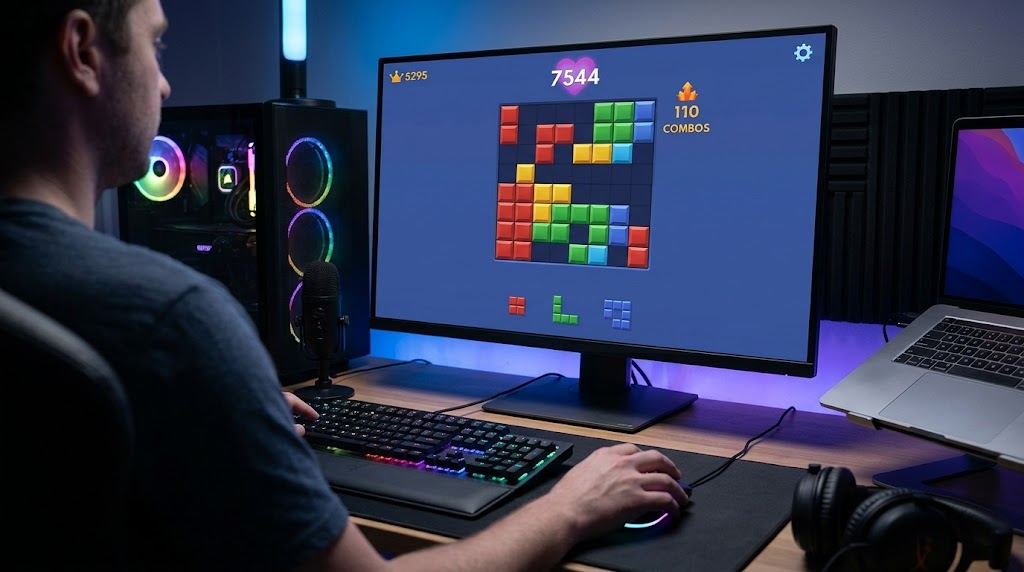
While Block Blast was designed as an intuitive touch-first mobile block puzzle, playing on a larger desktop screen brings significant strategic advantages. An expanded view of the 8×8 grid enables precise placement without finger occlusion, mouse clicks provide razor-sharp spatial accuracy, and consistent high frame rates prevent stutter during high-combo board wipes.
This complete guide details every verified method to play Block Blast on Windows PC and Apple macOS, comparing zero-install browser solutions against high-performance Android emulators.
Method 1: Instant In-Browser Play (Zero Download, PC & Mac)
The fastest and most resource-efficient way to enjoy Block Blast on desktop hardware is through optimized HTML5/WebGL browser versions.
Recommended System & Browser Requirements
- Supported Browsers: Google Chrome (v110+), Microsoft Edge, Mozilla Firefox, Apple Safari.
- Hardware Acceleration: Enabled in browser flags (
chrome://settings/system). - Memory Usage: Approx. 150 MB RAM.
Step-by-Step Launch
- Open your desktop browser and navigate to our homepage:
blockblasttips.com. - Locate the central game container at the top of the interface.
- Click the Fullscreen button in the upper-right corner of the canvas to expand the board across your screen.
- Use left-click drag-and-drop to place pieces directly onto the 8×8 grid.
Pros: Instant startup, works seamlessly across Windows 10/11, macOS, ChromeOS, and Linux; no system privileges required.
Cons: Requires an active internet connection; audio latency may vary depending on browser cache states.
Method 2: Playing on Windows PC via Android Emulators
For players seeking high refresh rates (120 FPS+), custom mouse mapping, and offline gameplay capability, Android virtual environments provide the most robust execution.
Recommended Emulators for Windows
- BlueStacks 5 (Pie 64-bit or Android 11 Instance): Best overall stability and macro customization.
- LDPlayer 9: Ultra-lightweight kernel, optimized for mid-to-entry-level laptops and integrated GPUs.
Windows Installation Walkthrough (Example: BlueStacks 5)
Step 1: Verification & Download
- Visit the official developer portal (
bluestacks.com) and download the BlueStacks 5 setup installer. - Run the executable and ensure installation occurs on a solid-state drive (SSD) for optimal loading speeds.
Step 2: Google Account Authentication
- Launch BlueStacks after installation finishes.
- Open the Google Play Store app preloaded on the virtual home screen.
- Sign in using your standard Google Account credentials to access secure, verified app repositories.
Step 3: Game Installation
- In the Google Play search bar, enter
Block Blast!. - Verify the official publisher is Hungry Studio.
- Click Install and wait for the package to finish downloading (approx. 80–120 MB).
Step 4: Display & DPI Configuration
To ensure block edges render crisply without anti-aliasing blur:
- Open BlueStacks Settings (gear icon on the right dock) -> Display.
- Set Display Resolution to your monitor native resolution (e.g.,
1920x1080). - Set Pixel Density to
320 DPI (High). - Under Performance, allocate at least
2 CPU Coresand2 GB RAM, with Graphics Engine set to DirectX or Vulkan.
Method 3: Playing on Apple Mac (macOS Sonoma & Newer)
Mac configurations require different approaches depending on whether your machine utilizes Apple Silicon (M1/M2/M3/M4) or older Intel architecture.
For Apple Silicon Macs (M1 / M2 / M3 / M4)
Modern Mac devices powered by ARM architecture natively run iOS binaries:
- Open the Mac App Store.
- Type
Block Blastinto the search bar. - Beneath the search bar, click the tab labeled iPhone & iPad Apps.
- If listed in your regional store, click Get to install natively onto your Applications folder.
- Launch the game from Launchpad; left-click tracks finger touches natively.
For Intel-Based Macs & Apple Silicon Alternative: NoxPlayer / MuMu Player Pro
If the native iPad version is unavailable in your region’s App Store:
- Download MuMu Player Pro (Mac Edition) or BlueStacks for macOS.
- Grant necessary System Extensions permissions in
System Settings -> Privacy & Security. - Launch the virtual engine, connect your Google Play account, and download Block Blast directly from the store.
Optimal Keymapping & Mouse Setup
Controlling falling blocks with a cursor differs slightly from capacitive touch screens. Follow these tips to eliminate misdrops:
- Mouse DPI Calibration: Lower your physical mouse DPI to 800 – 1200 DPI. Excessively sensitive mouse movement can trigger accidental release outside the intended grid coordinate.
- Drag vs. Click: Click and hold the geometric shape from the bottom rack, glide your cursor deliberately to the target cell, and confirm alignment with the dark preview shadow before releasing the left mouse button.
- Disable Pointer Precision: In Windows Mouse Settings, disable Enhance Pointer Precision to ensure linear, predictable cursor acceleration.
Troubleshooting Common Desktop Issues
1. Game Stuck at 99% Loading Screen (Emulators)
- Root Cause: Virtualization Technology (VT-x / AMD-V) disabled in PC motherboard BIOS.
- Fix: Restart your PC, press
F2,Del, orF12to enter BIOS, locate Intel Virtualization Technology or SVM Mode, enable it, save, and reboot.
2. Black Screen or Frame Stutter
- Root Cause: Outdated graphics driver or incorrect rendering backend.
- Fix: Switch the emulator graphics settings between OpenGL and DirectX. Update NVIDIA/AMD drivers to the latest stable release.
3. Mouse Cursor Lagging Behind Movement
- Root Cause: High frame latency or aggressive V-Sync buffering.
- Fix: Enable High Frame Rate Mode in emulator performance settings and cap framerate to match your display refresh rate (60 Hz or 144 Hz).
Editorial Verdict: Which Setup Is Right for You?
| Feature | In-Browser WebGL | Windows Android Emulator | Native macOS Store |
| Setup Time | 0 minutes | 5–10 minutes | 2 minutes |
| Storage Required | None | 2–5 GB | ~150 MB |
| Performance Overhead | Minimal | Medium | Extremely Low |
| Offline Play | Limited | Yes | Yes |
| Ideal For | Quick casual breaks | Competitive high-scoring | MacBook users |
For casual daily clears and quick scoring runs, playing directly via modern desktop browsers offers convenience with zero storage overhead. For dedicated record-breaking sessions where 5,000+ combo streaks demand zero touch errors, a tuned Android emulator on an SSD provides the definitive desktop experience.